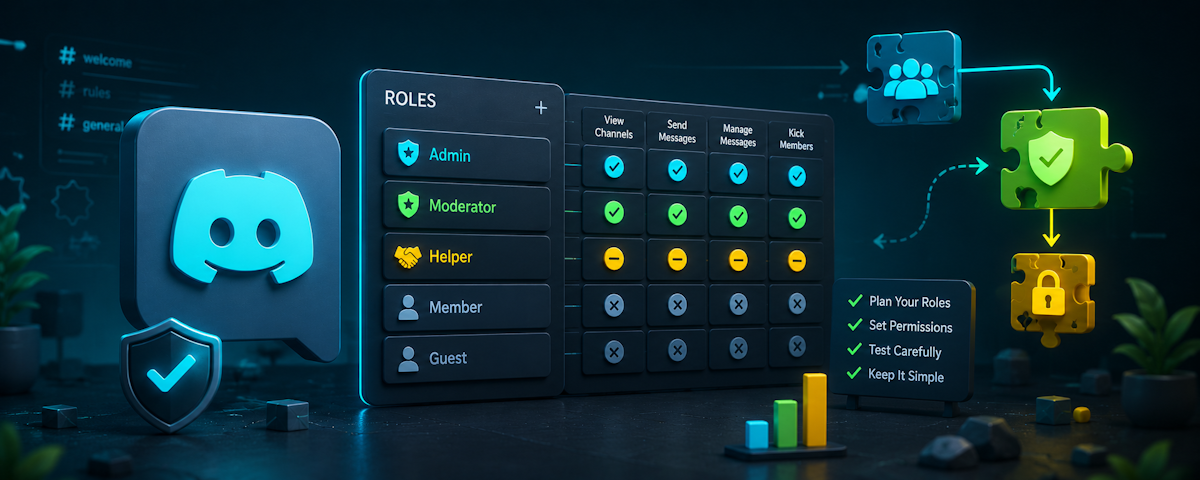
Discord's permission system looks simple until the moment you realise your @everyone role can suddenly see the staff-only channel, your moderators can't delete messages in #general, and someone with a colour role just nuked your server because you ticked one box you shouldn't have.
If you've ever stared at a wall of toggles wondering which one is about to ruin your week, this guide is for you. We're going to walk through exactly how Discord's permission hierarchy works, how to design a clean role architecture for any size server, how to build a moderation tier that scales, and how to test it all without setting your community on fire.
No prior knowledge assumed. By the end, you'll have a permission setup you actually understand.
How Discord Permissions Actually Work
Discord permissions flow through three layers, in this order:
- Server-level role permissions — what a role can do across the entire server.
- Category-level overrides — adjustments applied to every channel in a category.
- Channel-level overrides — adjustments applied to a single channel, overriding the category.
A user's final permission in any given channel is the result of stacking all the roles they have, then applying category overrides, then channel overrides. The most specific rule wins.
The Three States: Inherit, Allow, Deny
Every permission on a channel or category has three possible states, shown as a slash (/), a tick (✓), or a cross (✗):
- Inherit (
/) — no opinion. Whatever the role's server-level permission says, goes. - Allow (
✓) — explicitly grants this permission here, even if the server-level says no. - Deny (
✗) — explicitly blocks this permission here, even if the server-level says yes.
The golden rule: a deny at any level beats an allow at a higher level, with one exception — channel-level allows beat category-level denies. Specificity wins.
If a role has "Send Messages" allowed at the server level, denied at the category level, and allowed at the channel level — the user can send messages in that channel. The channel override is the most specific.
Why Role Order Matters
In your server settings, roles are listed top to bottom. This order controls two things:
- Hoisting and display colour — the highest role with a colour set determines a user's name colour. The highest role with "Display separately" determines where they appear in the member list.
- Who can moderate whom — a moderator can only kick, ban, or manage roles for users whose highest role is below their own highest role.
This second point catches people out constantly. If your Moderator role sits below your Booster role, your mods can't action server boosters. Always place staff roles above community roles, even decorative ones.
The Administrator Permission: Don't.
The Administrator permission grants every permission on the server and bypasses every channel override. There is no "hidden from admins" channel. There is no "can't delete the owner's messages" exception.
Give Administrator to:
- The server owner (automatic).
- A trusted co-owner or your most senior admin, if absolutely necessary.
- Nobody else. Ever.
Not your moderators. Not your bots (most well-built bots, Phantom included, only need the specific permissions they use). Not your friend who "just needs it for one thing."
If you're tempted to grant Administrator to fix a permission problem, you have a permission design problem. Fix that instead.
Designing Your Role Architecture
Good role design is layered. From top to bottom of the role list, you want roughly:
- Bots that need elevated permissions (Phantom, etc.)
- Owner / Co-Owner
- Staff tiers (Admin → Senior Mod → Mod → Trial Mod)
- Special roles (Partner, Contributor, VIP)
- Boosters
- Community / level roles
- Cosmetic / colour roles
- Verified / Member
- @everyone (always at the bottom)
The specific roles you need depend on your server type. Here are four common patterns.
Small Server (under 500 members)
Keep it lean. Too many roles on a small server creates noise and confusion.
- Owner
- Mod (one tier is enough)
- Booster
- Member (assigned after verification)
- @everyone (unverified)
That's it. Five roles. You can add colour roles later if people ask.
Medium Gaming Server (500–5,000 members)
- Phantom (bot)
- Owner
- Admin
- Senior Mod
- Mod
- Trial Mod
- Event Host
- Booster
- Level 50+, Level 25+, Level 10+ (from Phantom's levelling system)
- Game roles — self-assigned (Valorant, League, Minecraft, etc.)
- Region roles — self-assigned (NA, EU, AS, OC)
- Member
- @everyone
Content Creator Server (any size)
Creator servers benefit from clear distinction between fans, subscribers, and supporters.
- Phantom
- Owner (the creator)
- Manager (anyone helping run the channel)
- Mod, Trial Mod
- Editor / Clipper
- Twitch Subscriber (auto-assigned via Phantom's Twitch integration)
- YouTube Member (auto-assigned via Phantom's YouTube integration)
- TikTok Follower
- Booster
- Notification roles — self-assigned for stream pings, upload pings, etc.
- Member
- @everyone
FiveM / Roleplay Server
- Phantom
- Server Owner
- Management
- Developer
- Admin, Senior Mod, Mod, Trial Mod
- Whitelisted (passed application)
- Department roles — Police, EMS, Mechanic, etc.
- Civilian
- Applicant
- @everyone
The whitelist gate is critical here. Unwhitelisted users should see only #rules, #apply, and #announcements.
Business / Professional Server
- Phantom
- Founder
- Leadership
- Department Heads
- Team Lead, Employee
- Contractor
- Client (gated to a specific support category)
- Verified
- @everyone
Step-by-Step: Building Your Roles
1. Strip @everyone Down
Go to Server Settings → Roles → @everyone. This is the base layer every member starts with. Be conservative:
- Disable: Mention @everyone and @here, Manage Events, Create Invite (optional), Change Nickname (optional).
- Keep enabled: View Channels, Send Messages, Read Message History, Connect, Speak, Use External Emoji.
If you're running a verification gate (recommended), go further — disable Send Messages at the @everyone level, then allow it on a per-channel basis for verified members only.
2. Create Your Member / Verified Role
This is the role users get after they verify. Give it the standard community permissions: send messages, embed links, attach files, add reactions, use external emoji, connect to voice. Nothing dangerous.
Phantom's verification system can auto-assign this role when a user passes a CAPTCHA or completes your custom verification flow — meaning bots and raiders never touch your real channels. Set it up once and forget about it.
3. Build Your Moderation Tiers
Here's a sensible permission breakdown by tier. Adjust to taste.
Trial Mod — learning the ropes, supervised.
- Manage Messages (delete)
- Mute Members (voice)
- Move Members
- Timeout Members
- View Audit Log
- No Kick, Ban, or Manage Roles.
Mod — full day-to-day moderation.
- Everything Trial Mod has
- Kick Members
- Manage Nicknames
- Manage Threads
Senior Mod — handles escalations, mentors trials.
- Everything Mod has
- Ban Members
- Manage Emojis & Stickers (optional)
Admin — server configuration, not chat moderation.
- Manage Channels
- Manage Roles (below their own role)
- Manage Webhooks
- Manage Server (optional — this is a big one)
- Everything Senior Mod has
Notice that Administrator appears nowhere. Each tier has only what it needs.
4. Place Roles in the Right Order
Drag your roles into the hierarchy described earlier. Double-check that:
- Every staff role sits above every community role.
- Phantom (and any other bot you trust to assign roles) sits above the roles it needs to manage.
- Boosters sit above community roles but below staff.
5. Set Up Category Overrides
Don't set permissions channel by channel. Set them on categories, and let channels inherit. This is the single biggest time-saver in Discord admin.
Example for a staff category:
- @everyone: Deny View Channel.
- Trial Mod: Allow View Channel, Allow Send Messages.
- Mod, Senior Mod, Admin: inherit (they have these at the server level, or via a higher override).
Now every new channel you create inside that category is staff-only by default. No more "oops, the new channel is public."
6. Channel-Specific Overrides
Use channel overrides for exceptions. Examples:
- #announcements — deny Send Messages for @everyone, allow for Admin only.
- #mod-applications — allow View for Trial Mod and above, allow Send for Senior Mod and Admin only.
- A voice AFK channel — deny Speak for everyone.
Keep overrides as few as possible. If you find yourself adding the same override to ten channels, that's a sign it should live on the category instead.
7. Test Everything
This is the step people skip and then regret.
Create a test account (a second Discord account on a different email). Join your server with it. Do not give it any roles. Walk through:
- Can it see only what an unverified user should?
- After verifying, can it see and post in the right places?
- Add the Member role, then a colour role — does anything unexpectedly unlock?
Then ask a Trial Mod to test their permissions: can they delete messages, can they not kick people? If something's wrong, you'd rather find out from a teammate than from an incident.
Bot-Assisted Role Assignment with Phantom
Manually assigning roles to thousands of members is a non-starter. Phantom handles the heavy lifting:
- Verification gating — users get the Member role automatically once they pass verification, with raid protection blocking known bad actors before they touch your server.
- Reaction roles and self-assign menus — let members pick game roles, notification roles, and region roles themselves.
- Level-based roles — Phantom's levelling system auto-assigns roles at level thresholds you define.
- Twitch / YouTube / TikTok integration — subscribers and members get role-based access without you lifting a finger.
- Welcome flows — assign default roles on join, with optional rules-acceptance checks.
The rule of thumb: if a role assignment can be triggered by an event (a join, a verification, a level-up, a sub), automate it. Save manual assignment for staff roles and special cases.
Common Permission Problems (and How to Fix Them)
"My mod can't delete messages in one specific channel"
Check the channel's overrides. Something is denying Manage Messages on that channel for the Mod role, or for a role they also have. Set the override to Allow on the Mod role for that channel — or better, fix it at the category level.
"@everyone can see the staff channel"
The @everyone role has View Channel allowed at the channel or category level. Open the channel's permissions, find @everyone, and deny View Channel. Then check the parent category and do the same there.
"A user has a role but can't see the right channels"
Three things to check, in order:
- Does the role itself have View Channel enabled at server level?
- Does the category deny View Channel for that role or for @everyone (which the user also has)?
- Does the specific channel have a deny override that's stricter than the category?
Remember: a deny on @everyone applies to everyone, including users with other roles, unless you explicitly allow on a specific role.
"Phantom can't assign a role"
The Phantom role must sit above the role it's trying to assign. Drag Phantom's role higher in the role list and try again.
"My mods can't take action on a specific user"
That user has a role equal to or higher than the mod's highest role. Either the user has a sneaky high role you forgot about, or your staff hierarchy is upside down. Check the role order.
"I gave someone a role and they suddenly have admin powers"
A role they hold has Administrator enabled, or has individually dangerous permissions (Manage Server, Manage Roles, Manage Webhooks). Audit every role's server-level permissions. If a role has Administrator and shouldn't, revoke it immediately.
"New channels keep being public"
You're creating channels outside of a category, or in a category without restrictive overrides. Always create channels inside a properly-configured category, and new channels will inherit the right settings.
Wrapping Up
A good permission setup is invisible. Members never bump into walls they shouldn't, staff never lack the tools they need, and you never wake up to a panicked DM about who-can-see-what.
The principles to remember:
- Layer your permissions — server, then category, then channel. Set rules at the highest level possible.
- Never grant Administrator unless you'd trust that person with the server itself.
- Order roles deliberately — staff above community, bots above the roles they manage.
- Test with a fresh account before you call any setup finished.
- Automate role assignment with Phantom so manual admin doesn't scale with your community.
If you're starting fresh, build the structure above and customise from there. If you're auditing an existing server, work top-down: fix the role order first, then @everyone, then categories, then individual channels. You'll find ninety percent of your problems disappear once the hierarchy is clean.
Ready to layer in verification, automated role assignment, and the rest of the stack? Add Phantom to your server and let the bot handle the boring parts.